Note: This overview reflects the state of Figma AI tools in February 2026. I will update this guide as Figma ships new features.
Most teams use AI as a one-off. They generate a layout once, rewrite some lorem ipsum, then go back to normal. Figma bakes AI into three layers of your workflow to help you ship clearer ideas sooner.
- Make handles initial product and UI generation.
- Design AI manages text, structure, and image editing in your core files.
- FigJam AI handles synthesis and structure around your research and workshops.
Figma Make: prompt to product in one afternoon
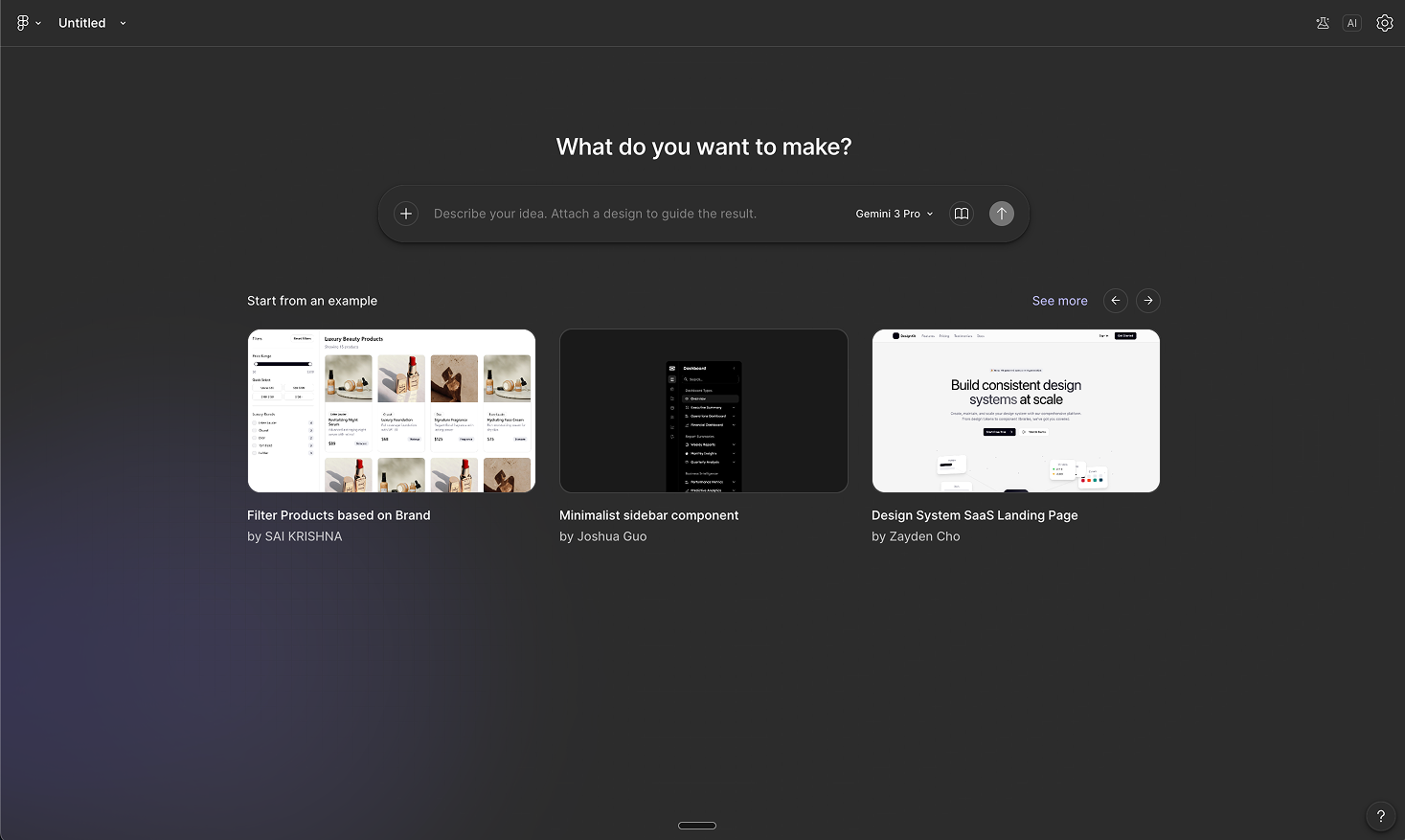
Figma Make sits at the center of the AI stack. It turns plain-language prompts into interactive UIs and working web apps, wired up with layout, components, and basic code. Teams with more Full seats get higher limits and publishing options.
You can use Make to execute several structural tasks:
- Describe an experience and generate a responsive UI.
- Pull in your existing styles and components.
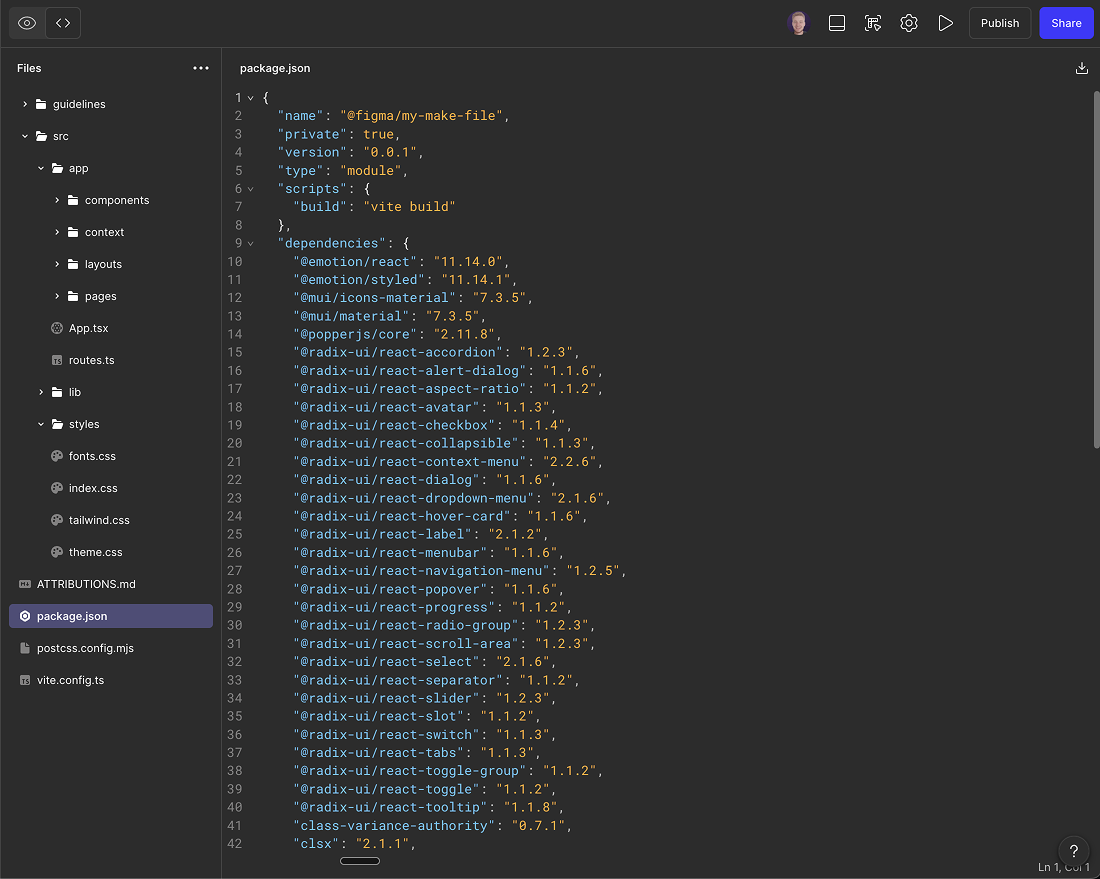
- Inspect and adjust the generated code directly.
- Hook up backends for auth and data to test internal tools.
How to start using Figma Make without ruining your system
Pick a narrow use case where speed matters more than originality. Write a prompt that includes the user, the main job they do, and the key screens. Add a Guidelines.md file to your Make project so generations stick to your layout rules and brand notes.
Start with these common use cases:
- Build a small marketing site.
- Create a simple product dashboard.
- Ship an internal tool the team keeps delaying.
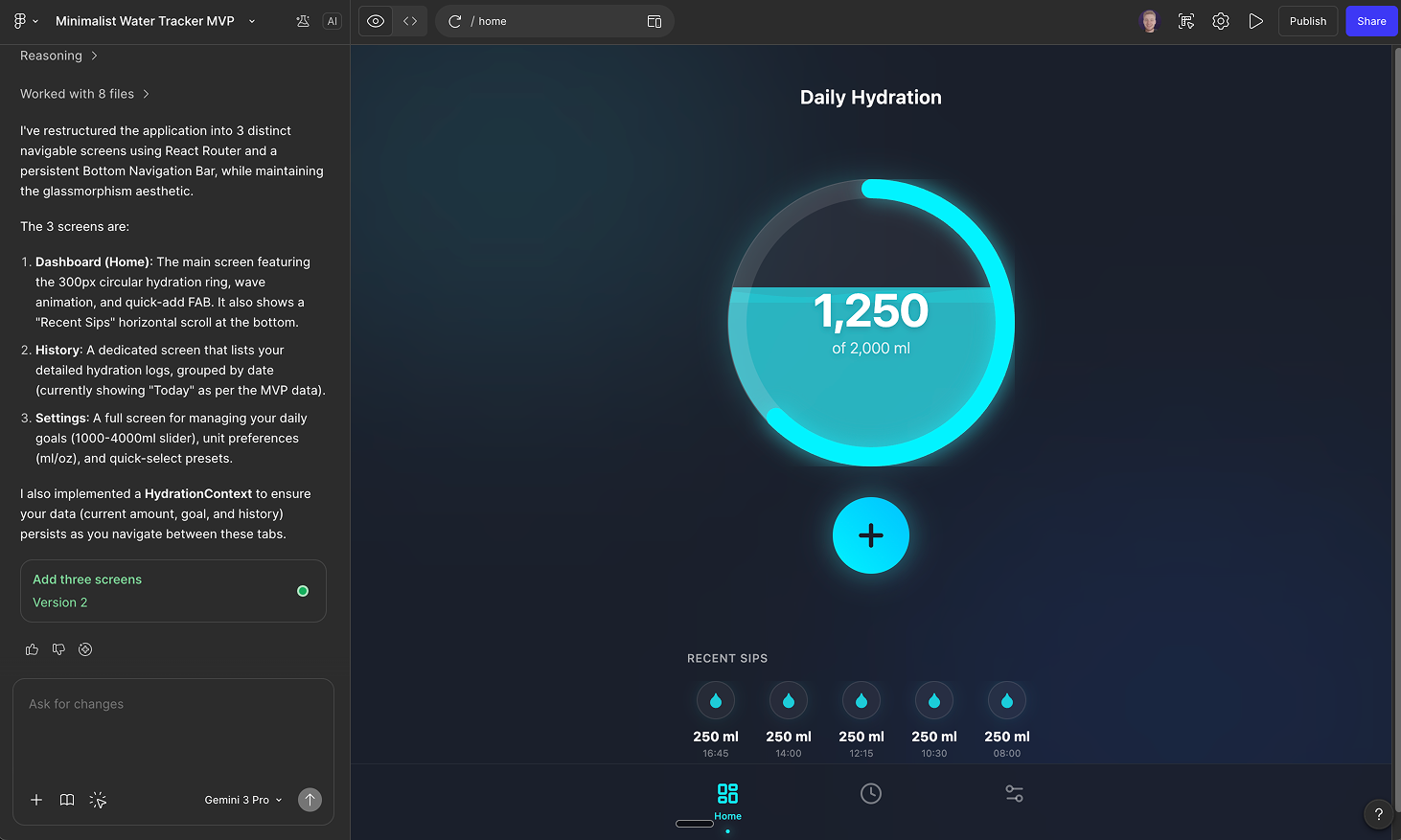
Treat Make like a fast assistant. Use prompts to get a direction, then refine directly on the canvas and in the code view. Generate once. Fix hierarchy, spacing, and copy in Figma. Adjust code where it matters. Only regenerate when you genuinely need a different direction.
When Figma Make works and when it fails
Make works well for explorations when you need rapid directions. It fails for highly differentiated flagship UI and complex systems requiring deep constraints. Use Make to get the conversation started.
- Good for: Explorations, early MVPs, and internal tools.
- Bad for: Flagship UI and complex systems.
The image and text assistant in your canvas
Figma’s Design AI tools cover text, structure, and images from the Actions menu and sidebars. You do not need multiple plugins for basic work.
Use the text and structure tools to clean up your workspace:
- Replace content swaps lorem ipsum with realistic strings.
- Add interactions wires up simple flows between frames.
- Rename layers cleans messy frame names into consistent, human-readable names.
- Rewrite, Shorten, and Translate let you adjust existing copy.
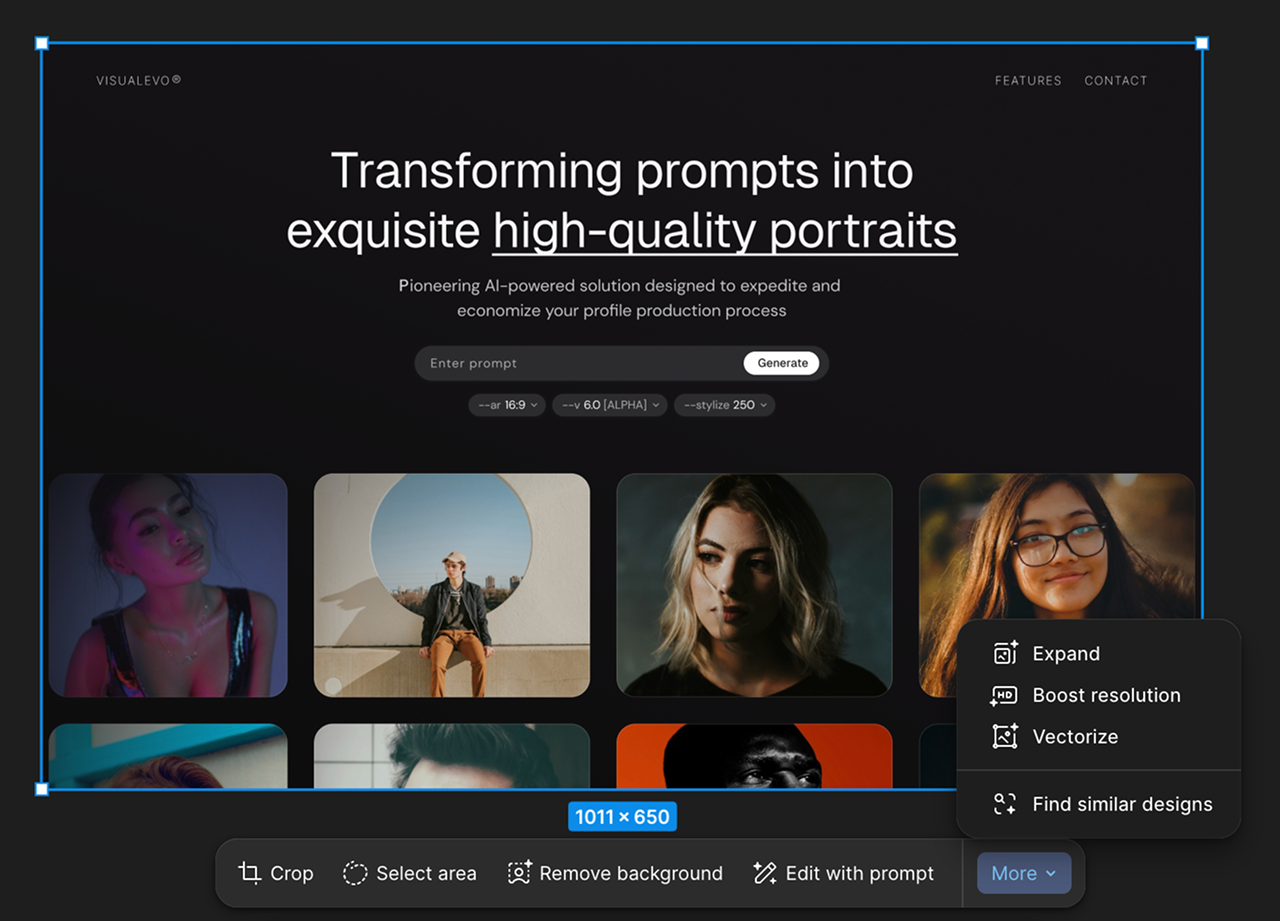
Select an image in Figma Design to access the AI image toolbar. You make and edit images using text prompts.
Use the image tools to edit assets without leaving the app:
- Remove background isolates the subject.
- Isolate or Erase object lifts out or cleanly removes specific areas.
- Expand image extends the scene to new aspect ratios.
- Boost resolution sharpens blurry assets.
- Vectorize turns raster images into editable vectors.
FigJam AI: structure from sticky chaos
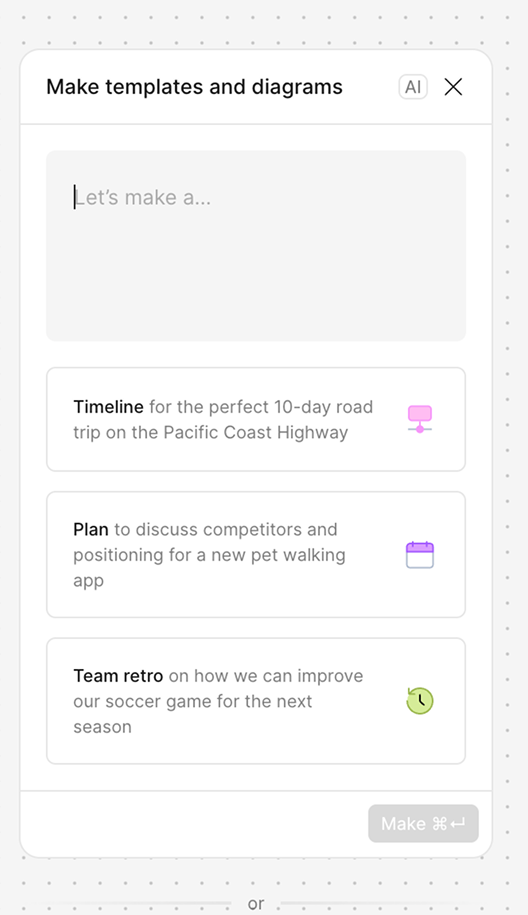
FigJam AI sorts and summarizes your sticky notes. These tools give you a first pass. You still adjust labels and groups to match your mental model.
- Sort stickies creates a copy grouped into labeled clusters.
- Summarize generates a text summary object you can move into docs or slides.
- Jambot is a widget that brings AI directly into your board. You use it to "rabbit hole" into a topic, rewrite sticky notes for different audiences, or generate quick code snippets during a brainstorm.
A daily AI workflow for designers
As a designer, you should build your daily routine around these tools to move faster. You integrate AI into your existing steps to cut out manual repetition. Both men and women on product teams use this exact sequence to reclaim hours every week.
Start with Make for rough drafts. You open Figma Make to generate a few layout options for a new feature. You write a prompt specifying the user needs and select your design system. You review the options and pick the strongest direction.
Clean the structure with Design AI. You bring the generated frames into your working file. You select them and run the Rename layers tool so developers can read your file. You click Replace content to swap the remaining placeholder text with realistic data. You fix the visual hierarchy manually.
Edit visuals inline. You drop a low-resolution client logo onto the canvas and run Vectorize to make it editable. You use Remove background on product photos to build clean card components. You do this without leaving Figma.
Synthesize feedback with FigJam AI. You paste stakeholder notes from your design review into FigJam. You select the sticky notes and click Sort stickies. You review the generated summary to plan your next iteration.
Using design AI to maintain your system
Enable AI in Admin settings for your workspace. Duplicate a key file and experiment there first. Agree on a simple layer naming pattern.
Apply these practices to keep your system clean:
- Use Rewrite or Shorten to test layouts with multiple content lengths.
- Use Remove background and Isolate object to build reusable components from product photos.
- Use Vectorize to convert legacy logos into proper source assets.
- Do not ship AI-generated copy or illustrations untouched.
- Do not let AI rename layers mid-project without warning the team.
Privacy, control, and AI training
Figma encrypts customer data in transit and at rest with role-based access controls. Third-party AI providers process your data but cannot use it to train their own models. Figma trains proprietary models on some customer content.
- Admins on many plans can opt out of content training.
- Turn off content training at the workspace level for work under NDA.
- Keep it on for generic marketing sites to centralize your work.
Sources
Official Figma docs
- Use AI tools in Figma Design
https://help.figma.com/hc/en-us/articles/23870272542231-Use-AI-tools-in-Figma-Design - Make or edit an image with AI
https://help.figma.com/hc/en-us/articles/24004542669463-Make-or-edit-an-image-with-AI - Sort and summarize stickies with FigJam AI
https://help.figma.com/hc/en-us/articles/18711926790423-Sort-and-summarize-stickies-with-FigJam-AI - Figma Make: Create with AI-Powered Design Tools
https://www.figma.com/make/ - About Figma AI (privacy, models, providers)
https://help.figma.com/hc/en-us/articles/24039793359767-About-Figma-AI
Feature / image‑editing deep dives
- Introducing three new tools for precise image editing in Figma
https://www.figma.com/blog/introducing-three-new-tools-for-precise-image-editing-in-figma/ - For the Love of Craft: Vectorize Images in Figma Design and Draw
https://www.figma.com/blog/introducing-vectorize/ - Figma AI: security and privacy considerations
https://blog.stackaware.com/p/figma-ai-training-data-content-security-privacy
Any statistics cited in this post come from third‑party studies and industry reports conducted under their own methodologies. They are intended to be directional, not guarantees of performance. Real outcomes will depend on your specific market and execution.
Does Figma use my designs to train its AI?
Figma trains its proprietary models on some customer content. Admins can opt out of this training in the workspace settings. Third-party providers do not use your data for training.
Who has access to Figma Make?
All users have access to Figma Make. Users with Full seats get higher generation limits and more publishing options.
Can Figma AI write code?
Figma Make generates basic code alongside its UI designs. You can inspect and adjust this code directly in the tool.
How do I turn on AI tools in Figma?
Go to Admin settings in your Figma home. Find the AI section and switch the tools on for your team.
Does Figma AI replace designers?
Figma AI does not replace designers. It handles repetitive tasks like renaming layers, replacing placeholder text, and isolating images so you can focus on user experience and brand direction.